
UK GUIDE FOR PARENTS
11 Plus School
Application Photo Online
Create a clear child photo for UK 11+ registration, grammar school applications and school admissions.
Prepare a suitable Eleven Plus school application photo online with Foxly Passport Photo . Upload your child’s picture through the web app or mobile app and receive a clear, correctly framed digital image ready to add to the school’s application form.
Get your digital school application photo for only
£5.


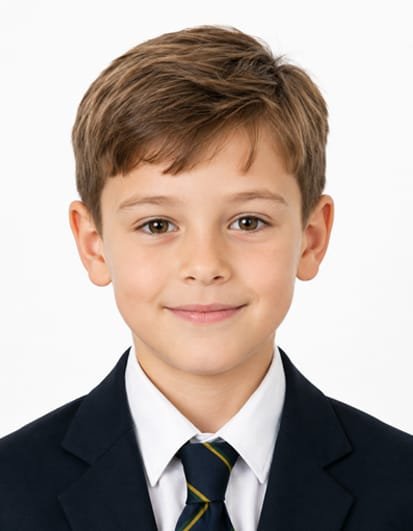
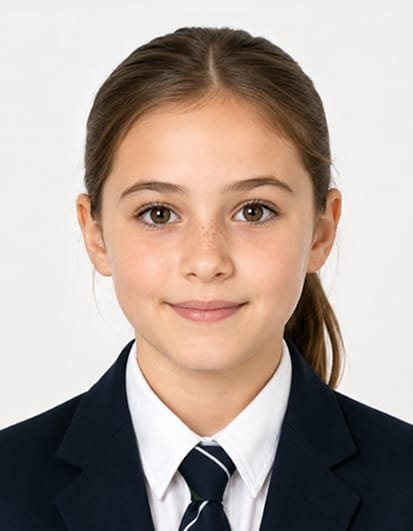
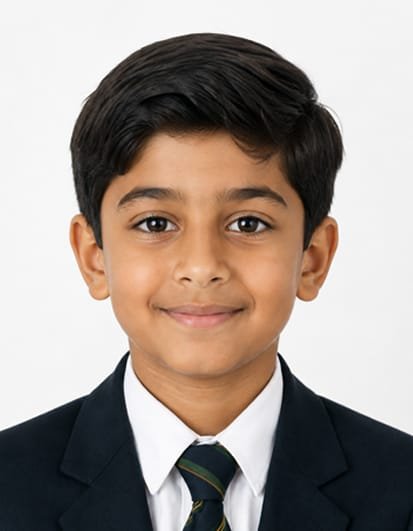
ELEVEN PLUS REGISTRATION
Why the 11 Plus Application Photo Matters
Grammar schools, independent schools and examination providers may request a recent photograph of the child during the 11+ registration process. The image can help the school match the applicant with online forms, entrance examination records, assessment-day lists and other admission information.
A clear and properly framed school application photo can help prevent identification problems or delays. Many schools accept a simple head-and-shoulders photograph with a plain background, although parents should always follow the exact instructions shown on the individual school’s application form.
PREPARE THE PHOTO ONLINE
Create an 11 Plus School Application Photo
There is no need to visit a photo booth or photography studio. The service is available online, making it easier to fit the photo into a busy school application schedule without arranging an appointment.
↑
Upload Your Photo
JPG or PNG · Maximum 10 MB
Choose a Photo
✓
ELEVEN PLUS PHOTO

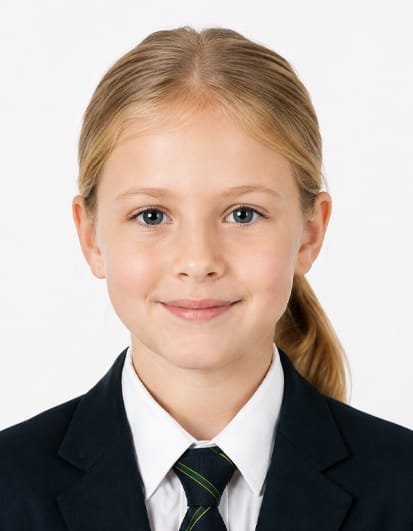
Prepare the Photo Online
Use Foxly Passport Photo to create a clear 11 Plus school application photo online with suitable head-and-shoulders framing. Receive a ready-to-use digital image for your child’s UK school registration or admission form.
- Clear portrait-style presentation
- Face and eyes clearly visible
- Plain background and even lighting
- Manually reviewed before delivery
SCHOOL APPLICATION PHOTO GUIDE
11+ Photo Requirements for UK School Applications
Eleven Plus photo requirements can differ between schools and examination providers. These general recommendations can help parents prepare a clear and suitable image, but the instructions supplied by the school should always take priority.
Use a Recent Photograph of Your Child
Choose a recent photograph that accurately represents how your child looks at the time of the 11+ application. Avoid using an old school photograph or an image taken several years earlier, as the photo may be used to help identify the child during entrance examinations, interviews or assessment days.
Choose a Plain, Light Background
Photograph your child in front of a plain white, off-white or light-coloured wall. The background should not contain furniture, pictures, toys, patterns, strong shadows or other distracting objects. A simple background keeps attention on the child’s face and gives the image a neat application-photo appearance.
Keep the Face and Eyes Clearly Visible
Ask your child to face the camera directly with both eyes open and clearly visible. Hair should not cover the eyes or important facial features. Avoid sunglasses, large accessories or anything that makes identification more difficult, unless an item is worn for religious or medical reasons.
Use Clear and Even Lighting
Use soft daylight where possible and position the child facing a window or another even light source. Avoid strong shadows across the face, bright light behind the child, direct flash glare or very dark rooms. The skin tone, eyes and facial features should appear clear and naturally coloured.
Use Head-and-Shoulders Framing
Frame the photograph from the upper chest or shoulders upwards, leaving a small amount of clear space above the head. Keep the child centred and make sure the entire head is visible. A portrait ratio similar to a 35 × 45 mm passport photograph can provide a useful starting format when the school does not state another size.
Avoid Filters and Artificial Editing
Do not use beauty filters, artificial facial effects or editing that changes the child’s appearance. The image should provide a realistic representation of the applicant. Basic adjustments to framing or background presentation may be suitable, but facial details should remain natural and recognisable.

Prepare your child’s 11+ school application photo through the Foxly Passport Photo web app or mobile app, with digital photos available for only £5.
Foxly Passport Photo is available for Android on Google Play and for iPhone and iPad on the App Store .
TAKE THE PHOTO AT HOME
How to Take and Prepare an 11 Plus Photo with Foxly Passport Photo
Take the original photograph at home using a phone or digital camera, then upload it to Foxly Passport Photo through the web app, Google Play app or App Store app. Start with a sharp image taken in good lighting so the child’s face, hair and upper shoulders are clearly visible.
Face the Camera Directly
Position the phone or camera at the child’s eye level and keep it directly in front of the face. Ask your child to sit or stand upright and look straight into the camera lens.
Use a Relaxed Expression
A relaxed expression or a small natural smile usually creates an appropriate school application photo. Avoid exaggerated expressions, open-mouth laughter or a photograph where the child is looking away.
Include the Full Head and Shoulders
Make sure the full head, hair and upper shoulders are visible in the original image. Leave some space around the child so the photograph can be prepared in a clear portrait format without cutting off important details.
Use Natural Light Where Possible
Position your child facing a window and avoid placing the strongest light behind them. Even lighting helps prevent dark shadows under the eyes, across the face or on the wall behind the child.
Upload the Original Image to Foxly
Upload the clearest original image rather than a screenshot or heavily compressed copy. Foxly Passport Photo can then be used to prepare the photograph as a clear digital image for only £5.
CREATE THE PHOTO ONLINE
How to Prepare an 11 Plus Application Photo Online
Foxly Passport Photo gives parents a simple way to upload an original child photograph, select the required photo option and receive a clear digital image that can be used for the school’s online application process.
Upload the Photo
Open the Foxly Passport Photo web app and select a clear photograph from your phone, tablet or computer. Use the original image whenever possible.
Open the web app →Select the Photo Type
Choose the relevant country and document type inside the app. Check the school’s own guidance before selecting the closest suitable photo format.
Choose the required optionSubmit Your Order
Continue through the online order and submit the clearest available image. Make sure the face, hair and upper shoulders are clearly visible.
Digital photo for £5Add It to the Application
Download the completed digital photo when it is ready and upload it to the grammar school, independent school or examination provider’s application form.
Complete the school application
COMMON QUESTIONS
Start Online
11 Plus School Application Photo FAQs
Prepare Your Child’s School Application Photo for only £5
Upload the original image through Foxly Passport Photo app and receive a clear digital photograph ready to use with the school’s online application form.